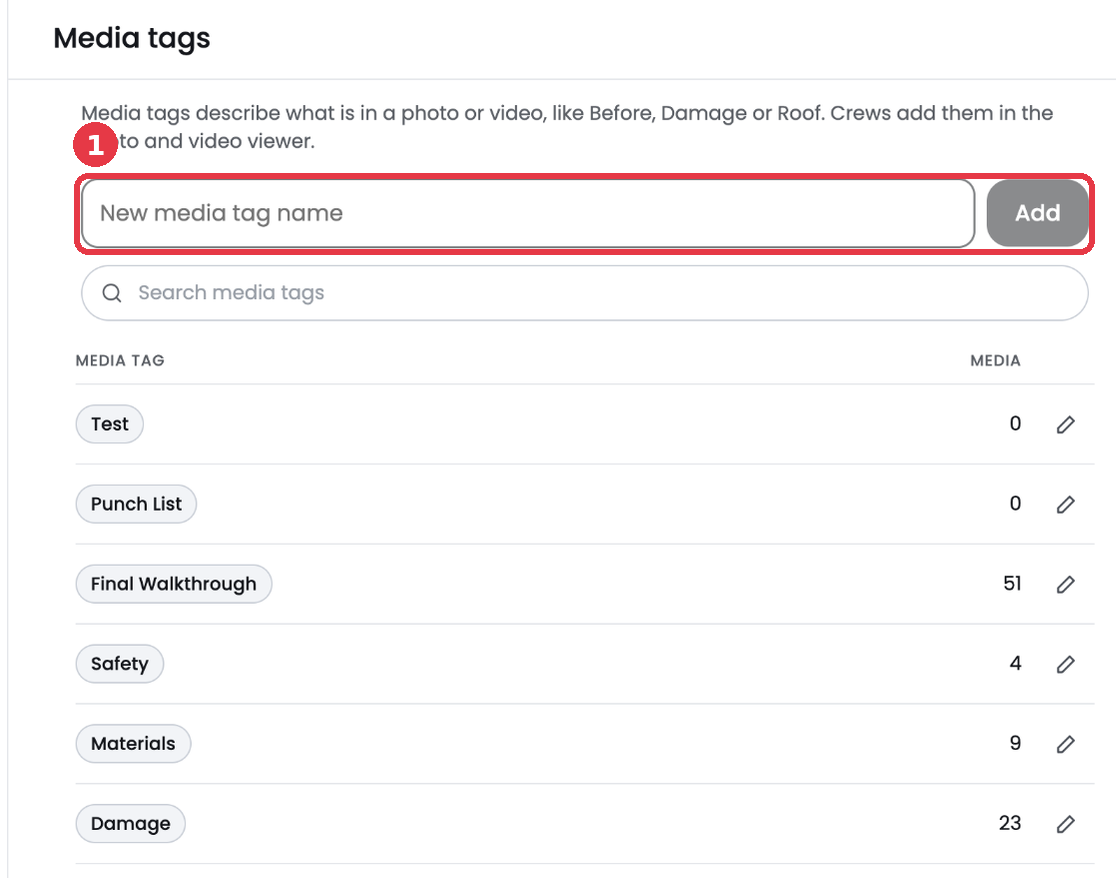
Media tags describe what is in a photo or video, like Before, After, Damage or Roof. Tags make photos easy to find and they show up in reports.
Tag a photo
- Open a job and click a photo to open the viewer.
- Click Tag under the photo.
- Click a tag to add it. To create a new tag, type it in the search box.
- Click a selected tag again to remove it.
- Click Done.
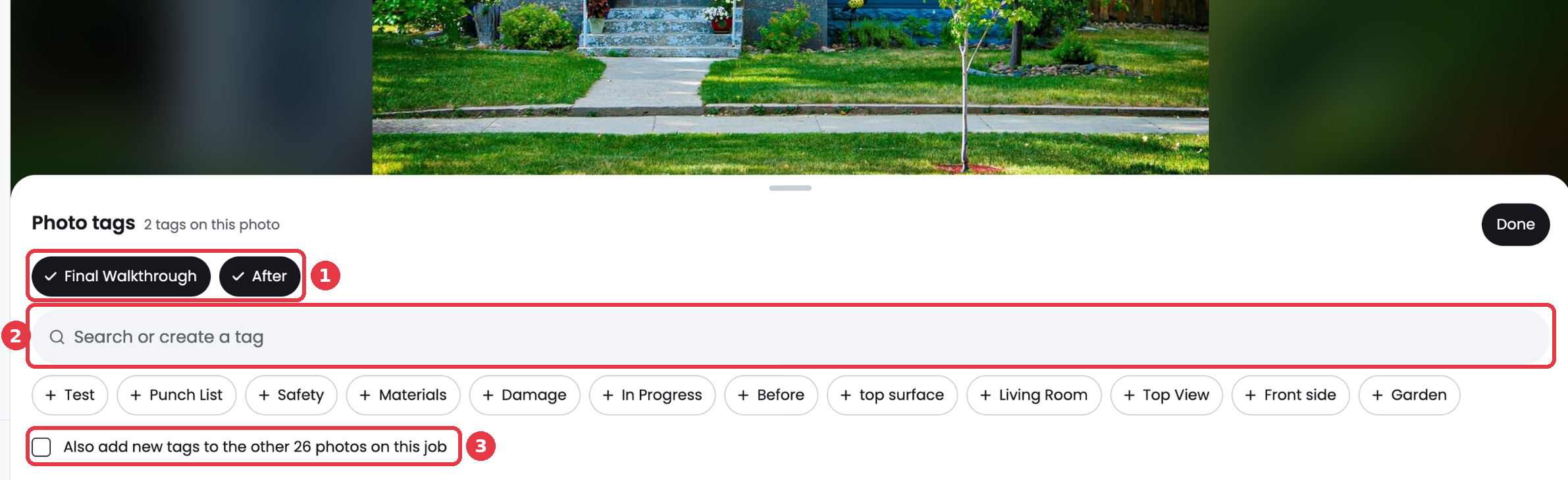
Tip: Check Also add new tags to the other photos on this job to tag every photo on the job at once.
Filter photos by tag
Use the Photo tag filter on a job's Media tab or on the Photos and videos page to see only photos with that tag.
Manage your company's tags
Admins can add and rename tags in Admin settings > Media tags. The list shows how many photos and videos use each tag.