
The BlitzzCam mobile app is how your crew documents work in the field. Every photo goes straight to the right job.
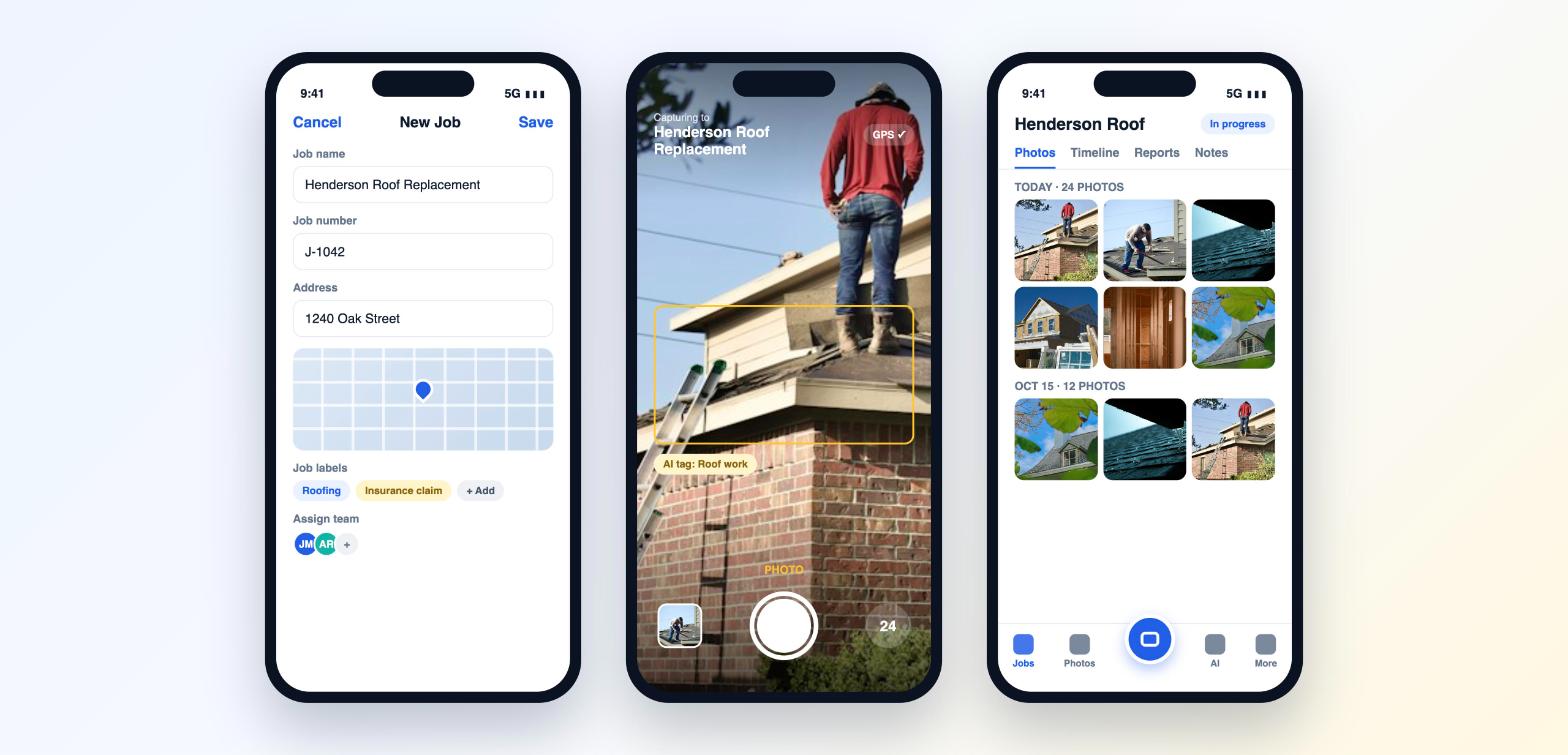
Take photos
- Open the BlitzzCam app and sign in.
- Open the job you are working on.
- Tap the camera button.
- Check the job name at the top of the camera. That is where your photos will go.
- Take your photos. Each one is stamped with the date, time and GPS location.
- Tap the counter in the corner to review what you captured.
Photos upload to the job automatically. The office can see them in the web app as soon as they sync.
Tips for better jobsite photos
- Start with a wide shot of each area, then move in for details.
- Capture before, during and after photos for every job.
- Add a description to any photo that needs context.
- Tag photos as you go so they are easy to find later.
- Use a checklist or AI Walkthrough so you never miss a required shot.
Time, date and GPS stamps
Your admin controls the stamps and watermark that appear on photos in Admin settings > Photos and stamp. Admins can also require GPS on every photo.