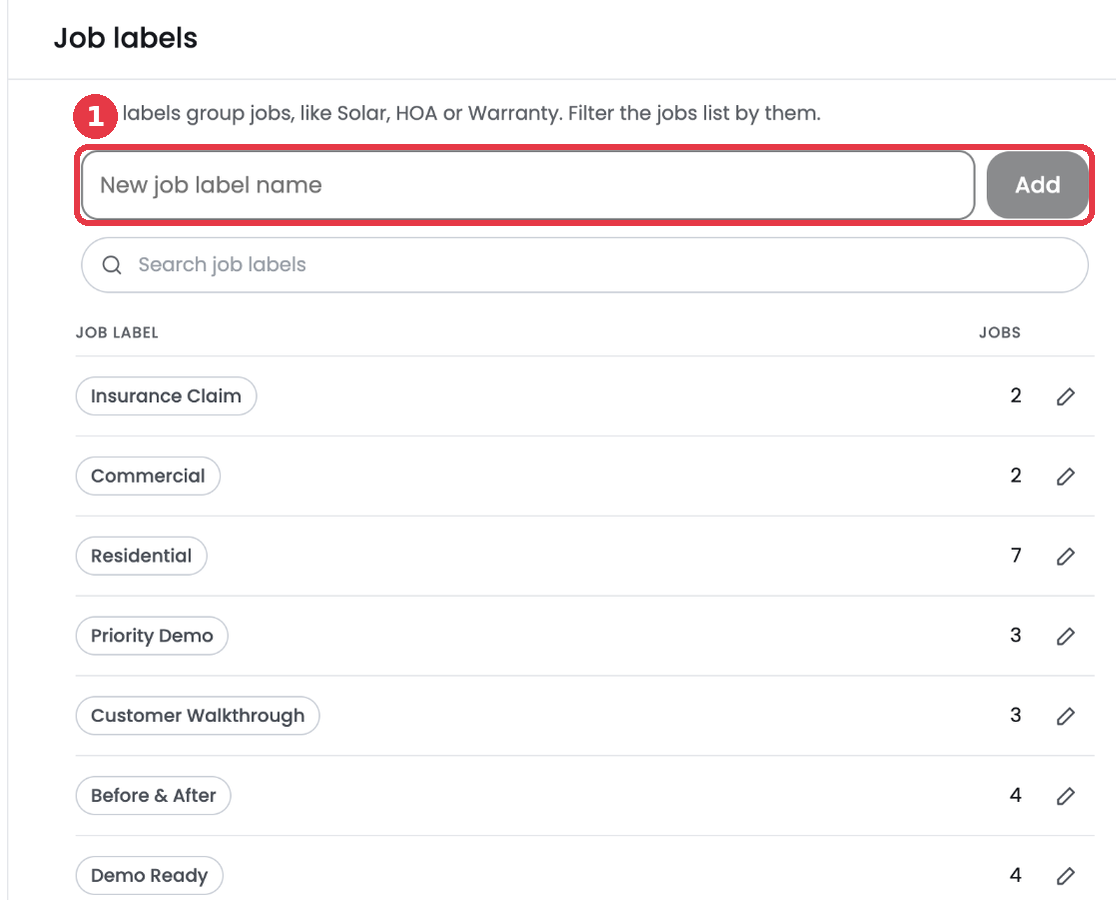
Job labels group jobs that have something in common, like Residential, Commercial, Insurance Claim or Warranty. A job can have as many labels as you need.
Job labels describe the whole job. To describe what is in a single photo, use media tags instead.
Add a label to a job
- Open the job.
- Click + Add label next to the job status.
- Pick a label from the list, or type a new name to create one.
- To remove a label, click the x on it.
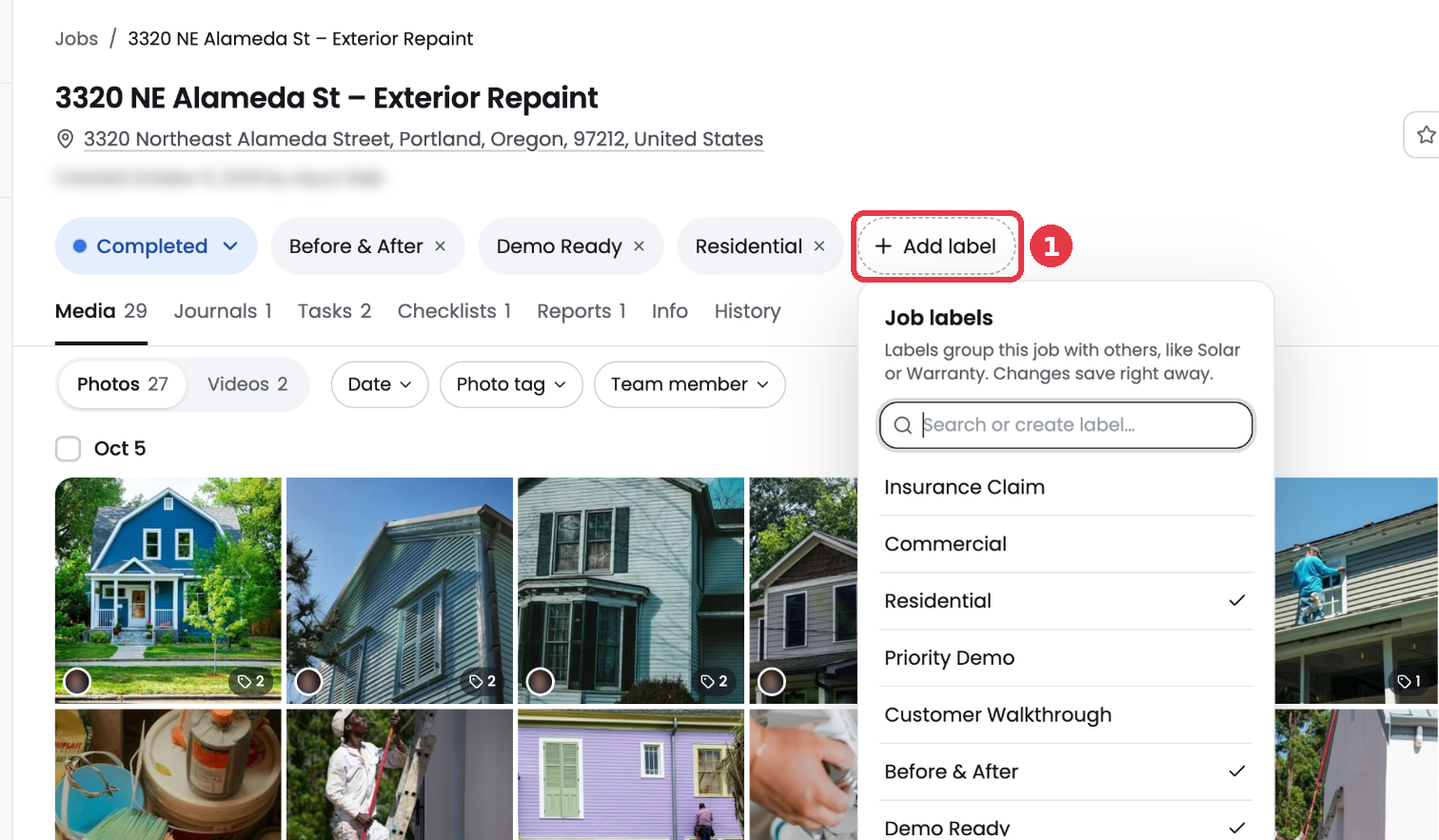
Changes save right away. You can also add labels when you create a job.
Filter jobs by label
On the Jobs page, open the Job labels filter and check the labels you want to see. Combine it with the search bar and the other filters to narrow the list.
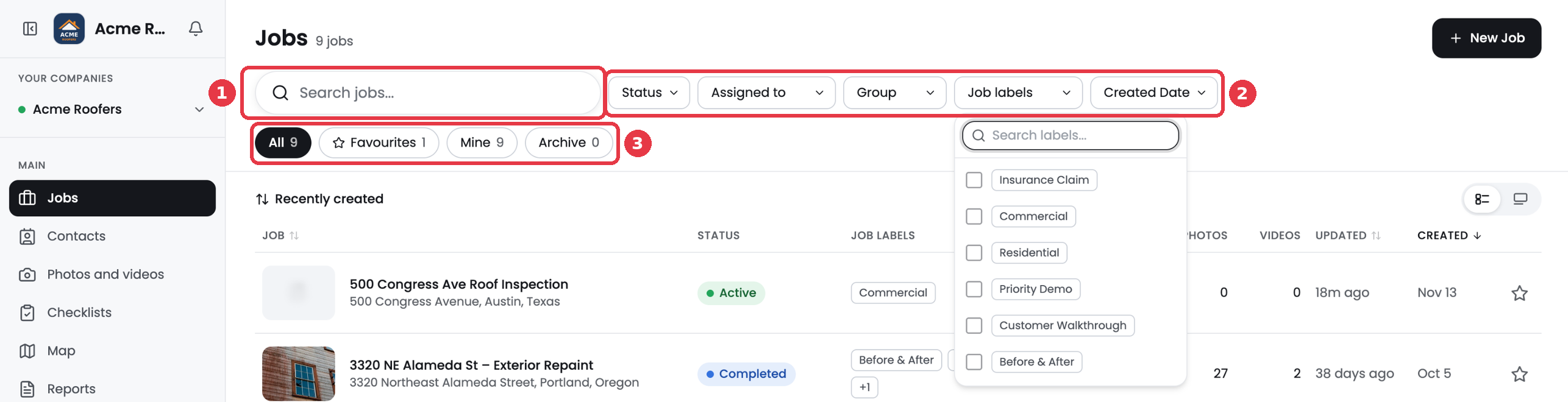
- 1. Search jobs by name or address.
- 2. Filter by status, assigned team member, group, job label or created date.
- 3. Switch between All, Favourites, Mine and Archive.
Manage your company's labels
Admins can add, rename and review labels in Admin settings > Job labels. The list shows how many jobs use each label.