
Jobs are the center of BlitzzCam. Each job holds its photos, videos, notes, tasks, checklists and reports. Create a job once and your whole crew captures to the same place.
Step 1. Pick the job address
- Go to Jobs and click + New Job.
- Type the job address in the search bar and pick it from the list. You can also drag the pin or click the map.
- Check the address at the bottom and click Confirm address.
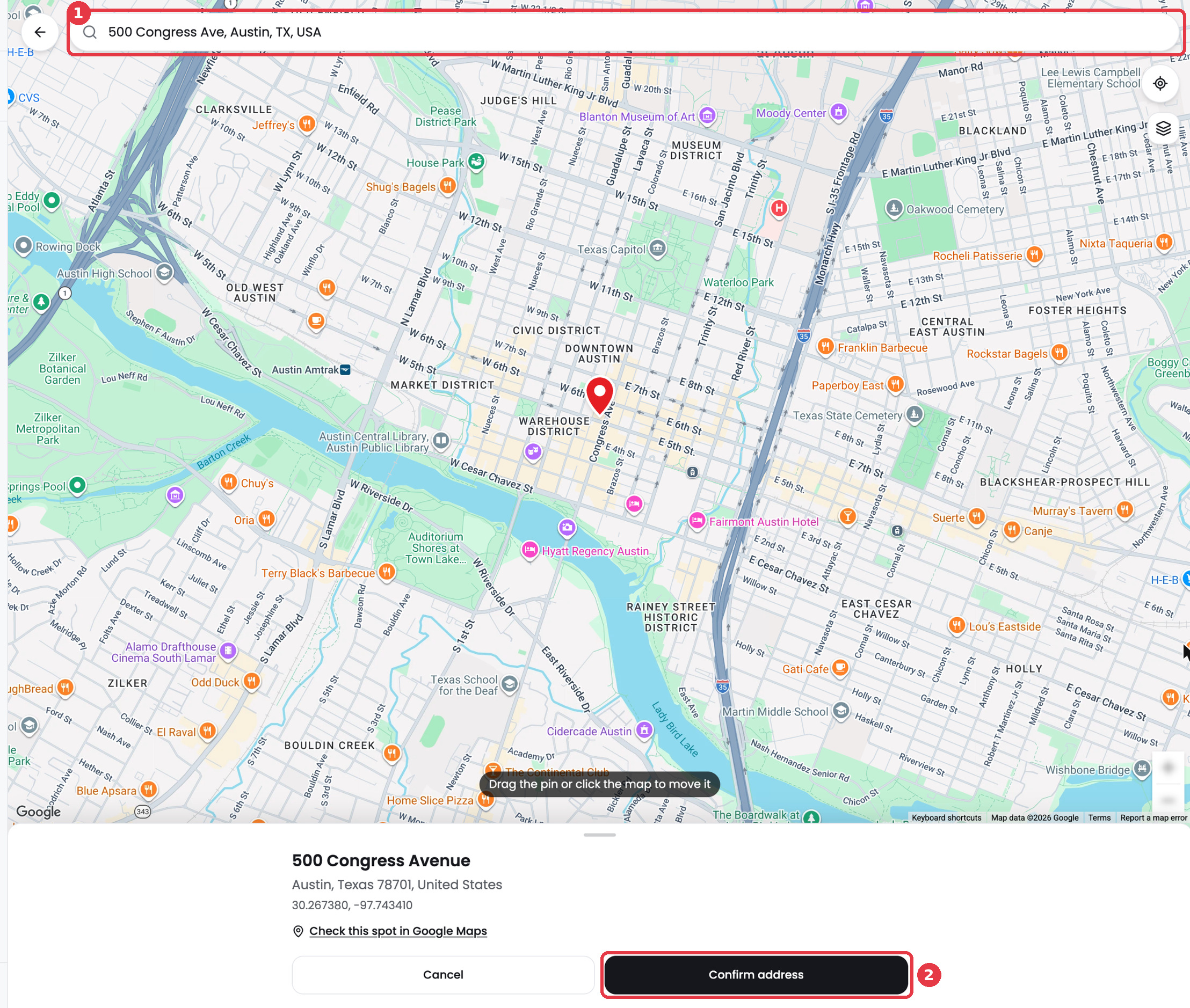
Tip: The map starts at your current location. Search for the job address before you confirm.
Step 2. Fill in the job details
- Enter a Job Name. This is the only required field. Many teams use the street address plus the type of work, for example 500 Congress Ave Roof Inspection.
- Add a Job Description if you want notes about the work.
- Choose a Status. New jobs start as Active.
- Check the address fields. BlitzzCam fills them in from the map.
- Optional: pick a Contact, add team members under Add Members and crews under Add Groups.
- Optional: click + under Add Labels to tag the job, for example Commercial or Insurance Claim.
- Click Create Job.
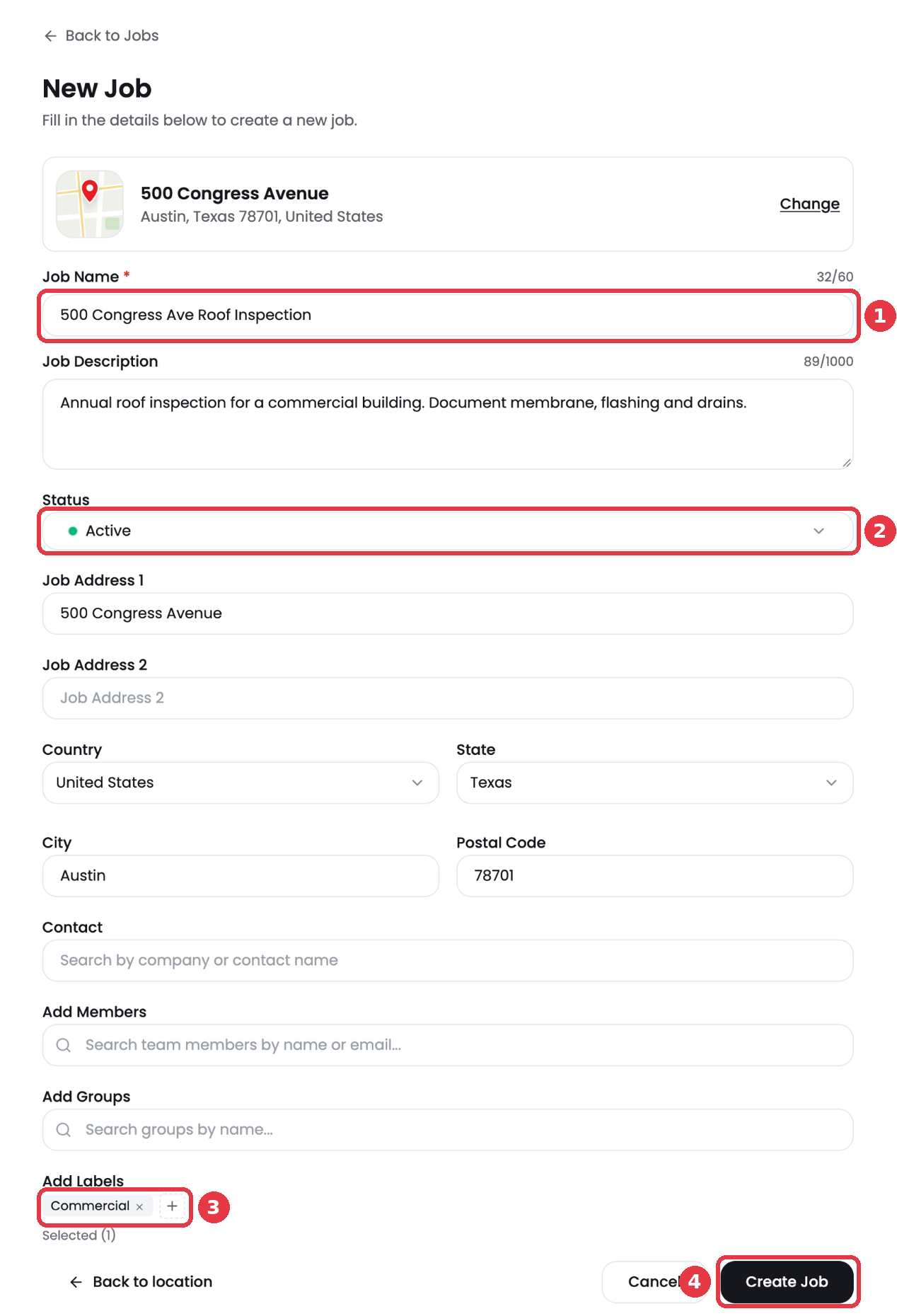
Your new job appears at the top of the Jobs list. You are added to the job automatically.
Next steps
- Take photos in the mobile app or upload them from your computer.
- Add a checklist so your crew knows what to capture.