
Groups add a whole crew to a job or checklist in one tap. A team member can be in more than one group.
Create a group
- Go to Admin settings > Groups.
- Click New group.
- Name the group, for example Inspection Team or North Crew.
- Add the team members and save.
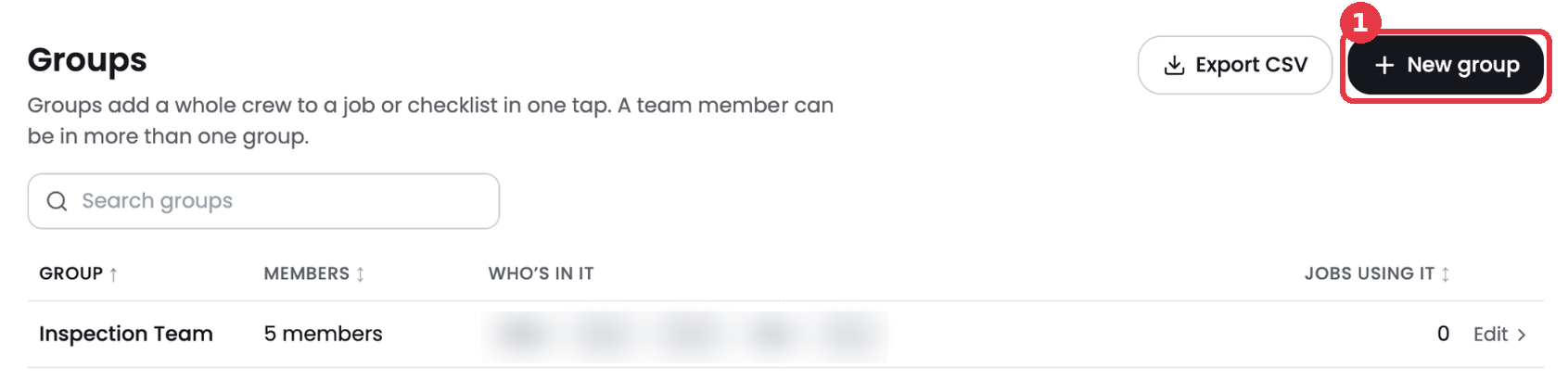
The Groups page shows how many members are in each group and how many jobs use it. Click Edit to change a group. Click Export CSV to download the list.
Use groups
- Add a group to a job with the Assign button.
- Add a group when you create a job under Add Groups.
- Filter the Jobs list by Group.
- Put new people in a group when you invite them.