
Procore is construction management software used by general contractors, owners and specialty contractors. Connect it to BlitzzCam and your Procore projects become BlitzzCam jobs. Every photo your crew captures on site is filed back to the matching Procore project automatically.
Connect Procore
- Go to Admin settings > Integrations and click Procore.
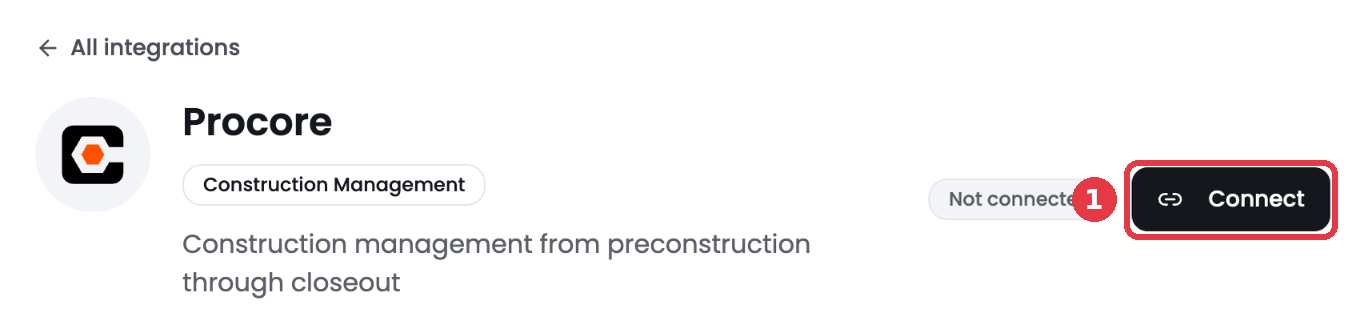
- Click Connect.
- Sign in to Procore and approve access for BlitzzCam.
- You return to BlitzzCam and the status changes to Connected.
Only BlitzzCam admins can connect or disconnect Procore.
What syncs
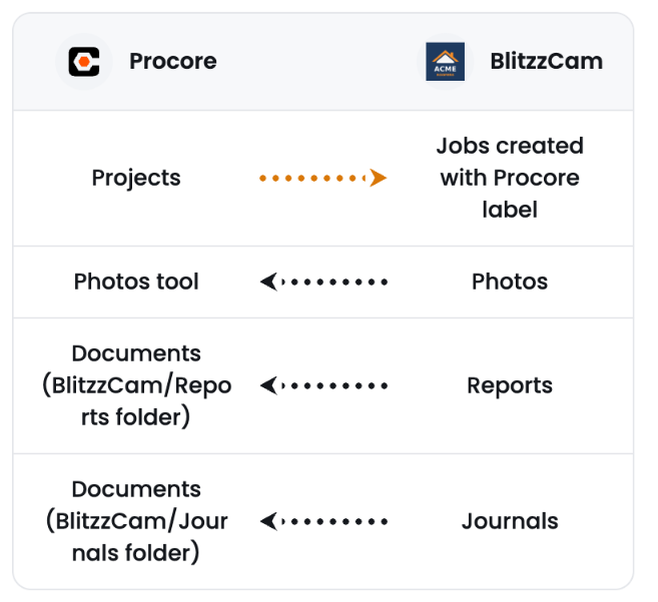
- Projects to jobs. Each project you can see in Procore is created as a BlitzzCam job with a Procore label. Jobs already imported are matched, not duplicated.
- Photos. Photos taken on a linked BlitzzCam job go to the Procore Photos tool, usually within seconds.
- Reports. Reports go to Procore Documents in the BlitzzCam / Reports folder.
- Journals. Journals go to Procore Documents in the BlitzzCam / Journals folder.
When something changes in Procore
- Procore owns the project name. Rename it in Procore and it changes in BlitzzCam. A rename made in BlitzzCam won't stick.
- An inactive project stops syncing. Set it back to Active in Procore to resume.
- A deleted project stops syncing for good. Nothing in BlitzzCam is deleted.
- Address and map location are copied once. You can edit them freely in BlitzzCam.
When syncing stops
- Photos taken while syncing is stopped stay in BlitzzCam only, even after syncing resumes.
- The job's detail page shows why a job isn't syncing.
- Disconnecting stops sending. Nothing is removed from either side.
Who shows as the uploader
Procore shows the connecting admin as the uploader. The description names whoever took the photo or created the report or journal, along with their email.