
Checklists make sure every job is done and documented the same way. Use them for inspections, QC walkthroughs, safety checks and job closeouts.
Create a checklist
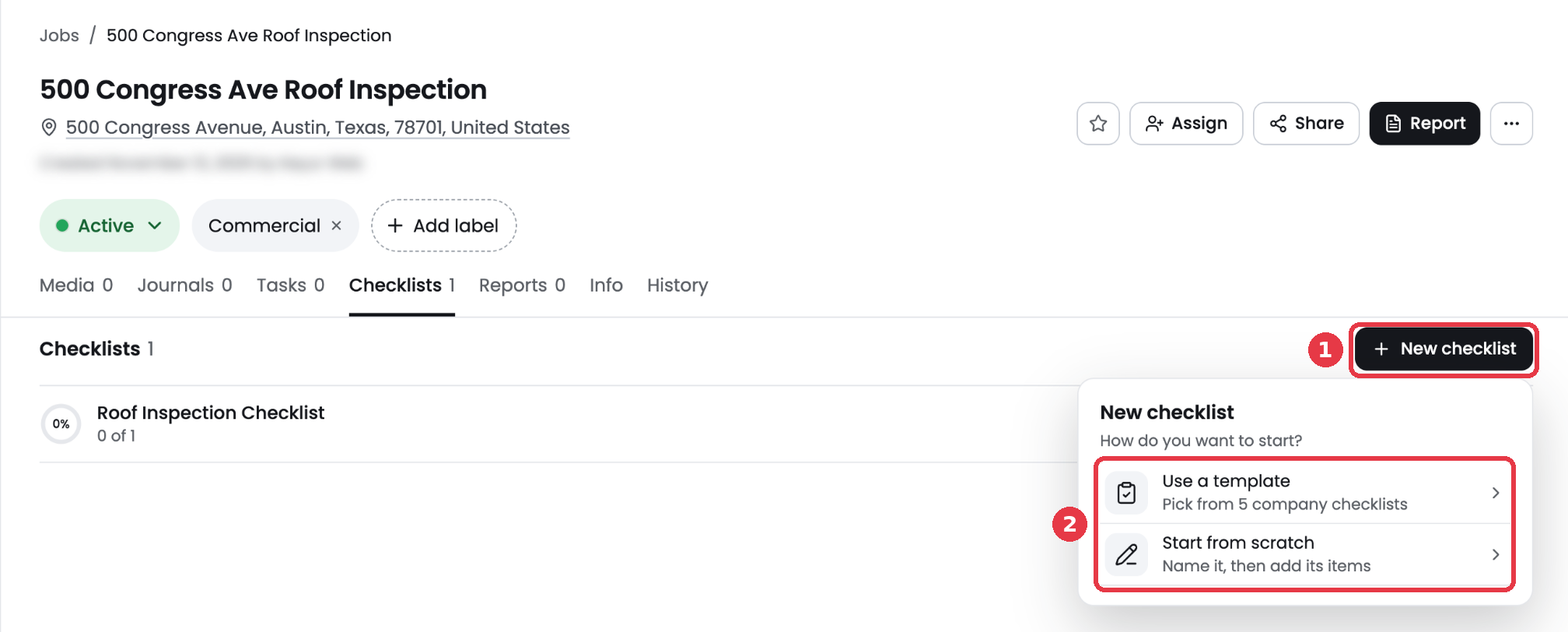
- Open the job and go to the Checklists tab.
- Click New checklist.
- Choose Use a template to start from one of your company checklists, or Start from scratch.
- If you start from scratch, name the checklist and click Create checklist.
Add items
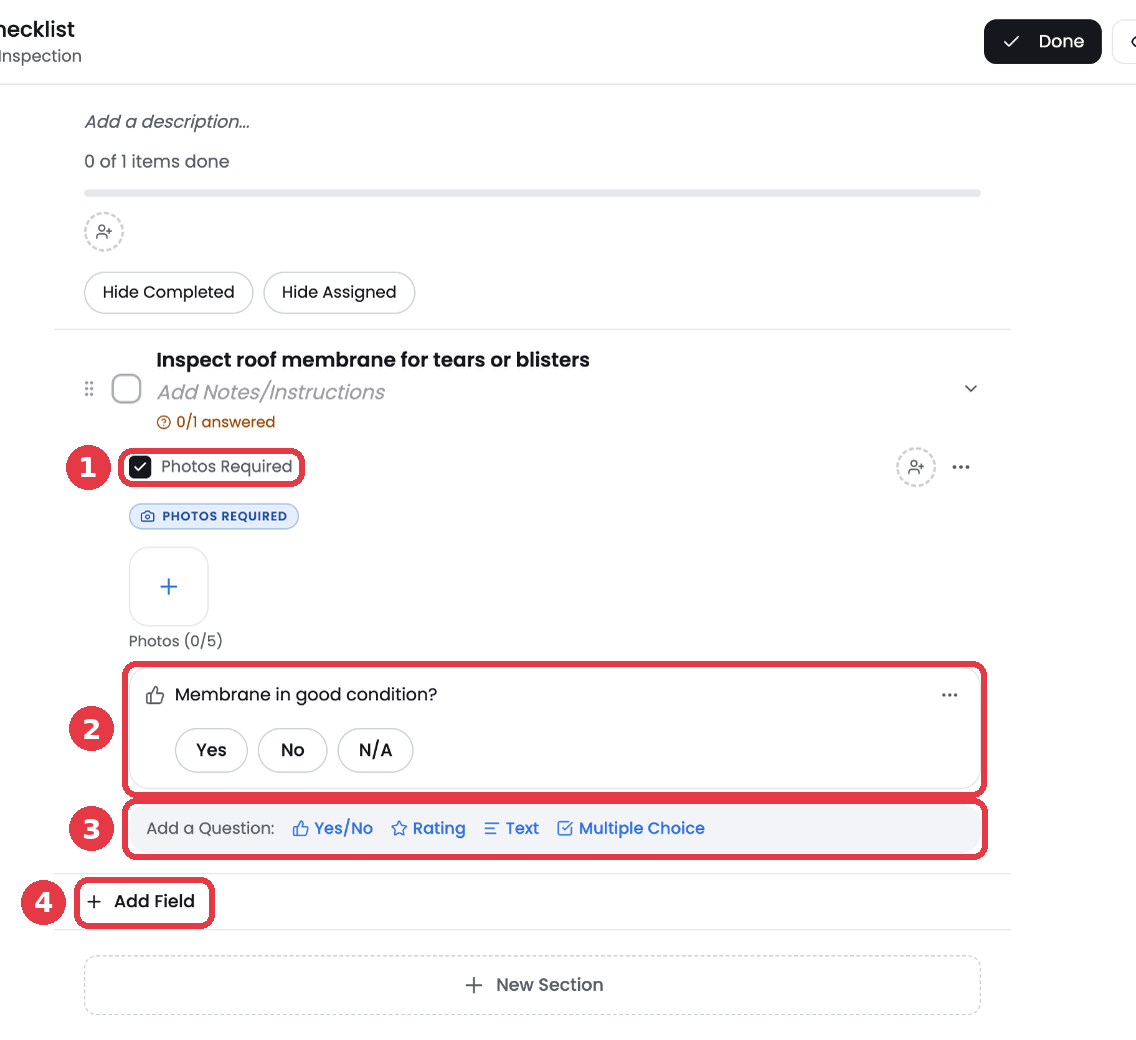
- Click Add Field and type what needs to be done, for example Inspect roof membrane for tears or blisters.
- Add notes or instructions under the title if your crew needs more detail.
- Check Photos Required if the item needs proof. Each item holds up to 5 photos.
- Under Add a Question, add a Yes/No, Rating, Text or Multiple Choice question.
- Use the person icon to assign the item to a team member.
- Click New Section to group items, like Exterior and Interior.
- Click Done when the checklist is ready.
Complete a checklist
Open the checklist and check off each item as you go. The progress bar shows how many items are done. Use Hide Completed and Hide Assigned to focus on what is left.