
AI Walkthrough guides your crew through a job one step at a time. Owlbert, the BlitzzCam AI assistant, tells the user what to capture next and checks off each step. No more missed photos or return trips. AI Walkthrough is included on all plans.
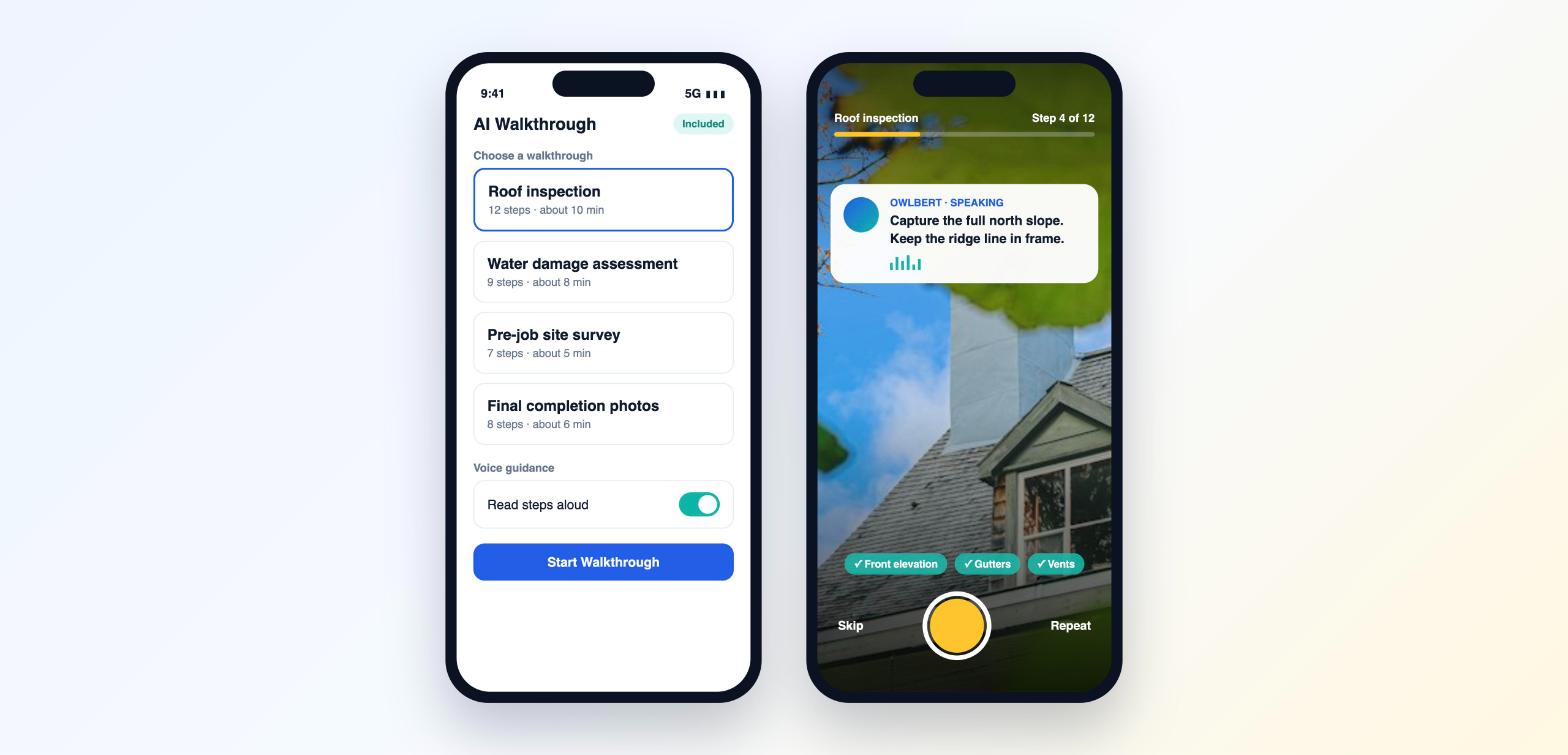
Start a walkthrough
- Open a job in the mobile app.
- Tap AI Walkthrough.
- Choose a walkthrough, for example Roof inspection or Water damage assessment.
- Turn on Read steps aloud if you want voice guidance.
- Tap Start Walkthrough.
During the walkthrough
- The progress bar shows which step you are on.
- Owlbert reads each instruction aloud and shows it on screen.
- Take the photo and the step is checked off automatically.
- Tap Repeat to hear the instruction again or Skip to move on.
When you finish
All photos are saved to the job in step order. The office can review them right away or turn them into a report.
Best practices
- Use the same walkthrough for the same type of job so every report is consistent.
- Use earbuds on loud jobsites so you can hear each prompt.
- Skip a step only when it does not apply, and add a note explaining why.